
Back to Tutorials
4 min read
Safe Practice & Extension Check
Safely test your microphone and rehearse your answers with an AI Coach before the real interview.
In pay-as-you-go mode, practice costs the same as live help — one minute of balance per minute, and any part of a minute counts as a whole minute. With the extension running during practice, both meters run and the minute costs double. Only one practice session can run at a time.
1
Configure Your AI Coach
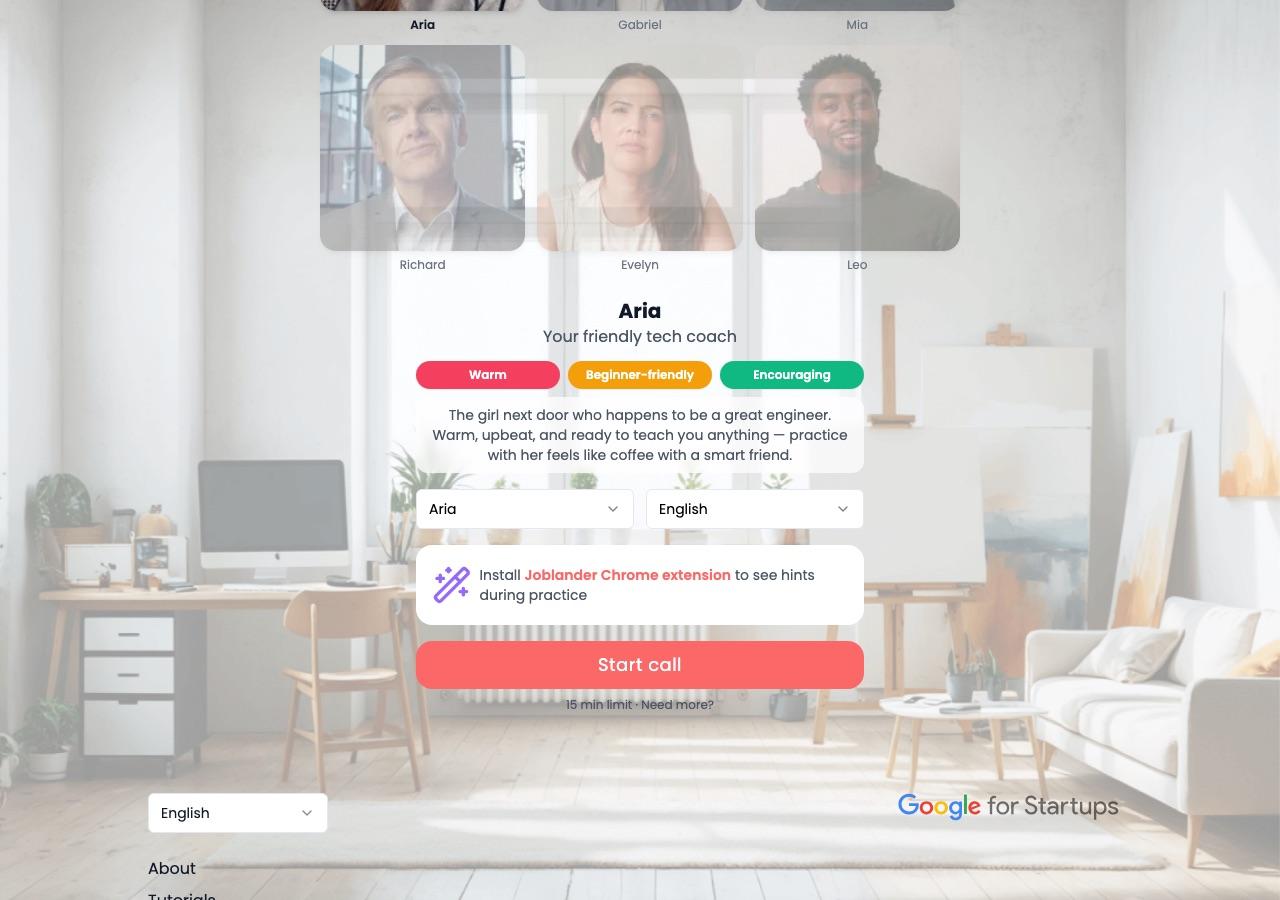
- →Click Practice with AI in the top navigation bar.
- →Use the Avatar dropdown to select your interviewer persona.
- →Use the Language dropdown to choose the language for this session — the AI will speak and generate hints in that language.
- →When ready, click the large Start call button and allow microphone access in your browser.
joblander.app/practice
2
Talk to the AI — Extension Activated
- →Aria will introduce itself and ask the first question. Answer naturally into your microphone.
- →Turn JobLander on for this tab: open it from the puzzle-piece menu at the top right of Chrome, sign in with the same account you use here, and switch Show JobLander Insights on. The practice page is not a meeting tab, so JobLander does not offer itself inside the page — the puzzle menu is the way in.
- →The audio visualizer next to the mute button animates as you speak — a quick confirmation your mic is working.
- →Two things are now running side by side: the coach call in the page, and a JobLander session listening to it. They are started separately and they are stopped separately.
joblander.app/practice
12:34
autoupdate on
Tell me about yourself
0
- Start with your current role and a key accomplishment.
- Highlight your past experience that specifically led you to this field.
- Conclude with your future goals and why you are excited about this opportunity.
3
End both — the call and the session
- →Click the red Disconnect button when you are finished.
- →Then end the JobLander session: click the timer pill in the widget header and confirm. Hanging up does not stop it — with the tab gone quiet, JobLander switches to Mirror mode, keeps listening to you, and keeps counting.
- →Your session ends cleanly — the AI analyses how it went and puts the transcript and debrief in the AI Practice tab. Coach sessions are listed there, not under Meetings.
- →Practice as many times as you like — each session helps you build confidence in using the AI hints in real-time.
12:34
Waiting for question...
💡
Pro Tip: Safest Way to Test Your Setup
This is the perfect place to confirm your microphone works, that the extension is syncing correctly, and to get comfortable reading hints while speaking — all before a real interview.