
Back to Tutorials
2 min read
Personalizing your AI's responses
Fine-tune the AI by uploading your Resume, selecting the best model, and adjusting the feedback tone.
1
Upload Your Resume
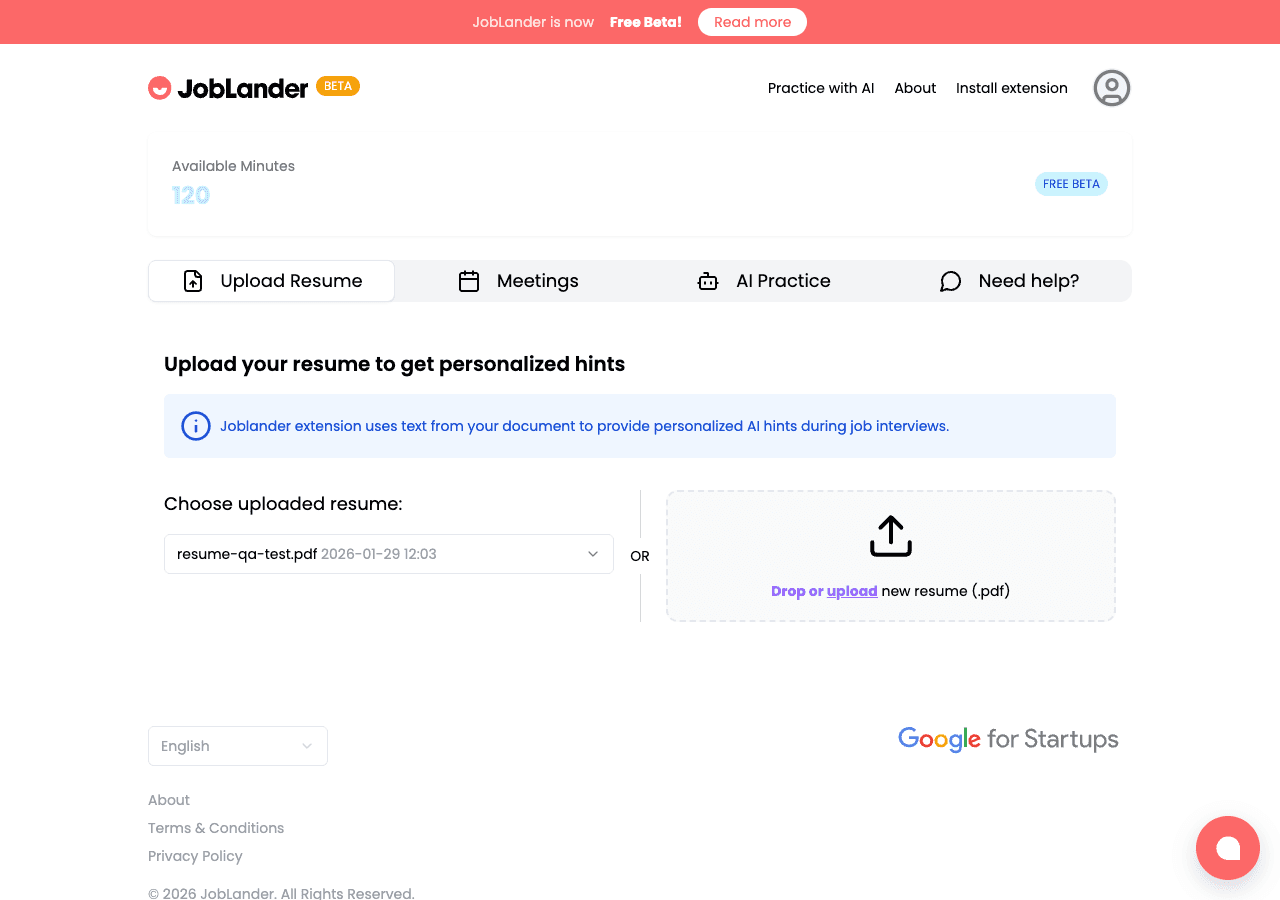
- →Go to the Dashboard and click the Upload Resume tab.
- →Drag and drop your
.pdfresume into the dashed upload box, or click it to browse. - →Wait for the upload to complete. The box turns green when successful.
- →Use the dropdown above the upload box to switch between resumes when targeting different roles.
joblander.app/dashboard
2
Tune the Feedback Tone
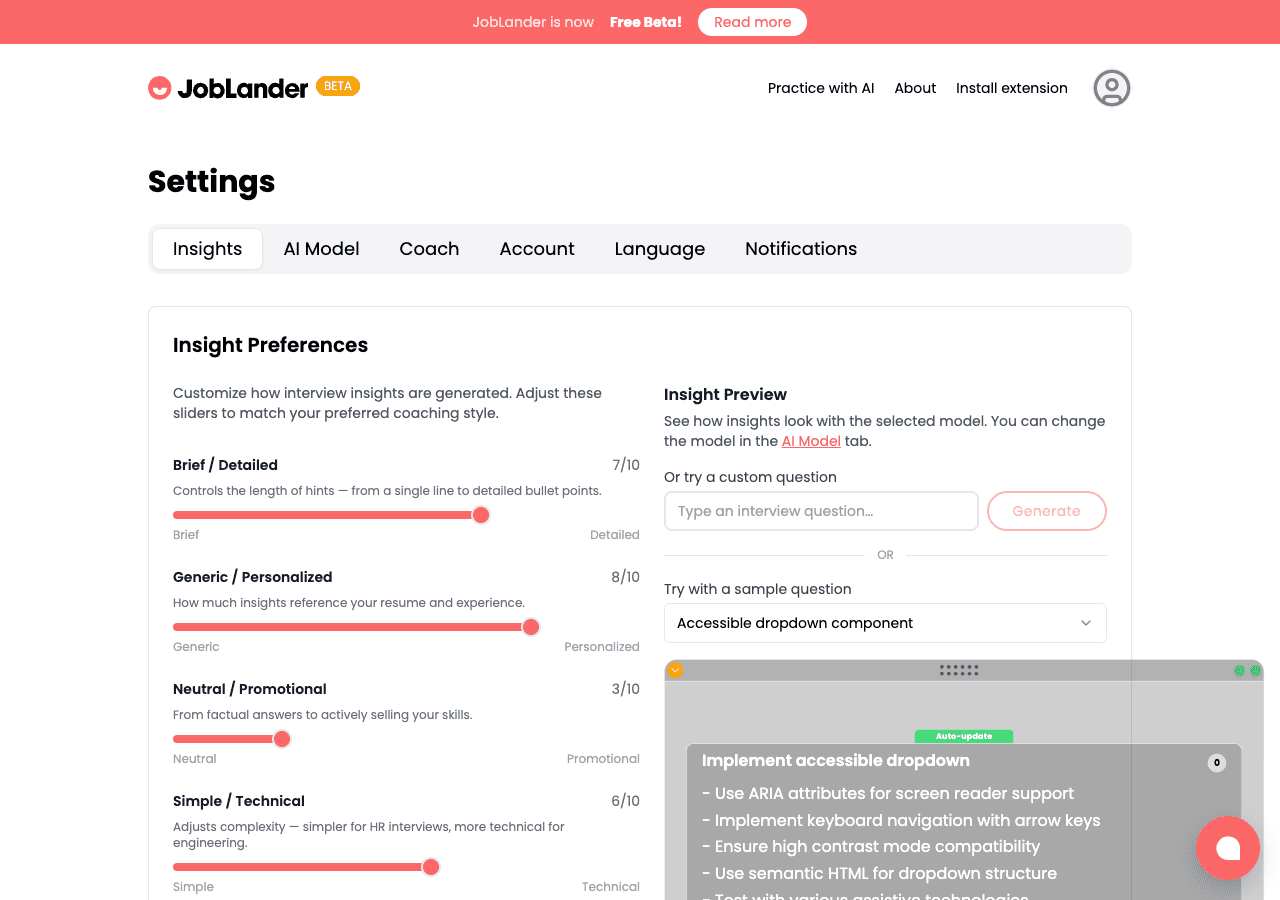
- →Switch to Settings → Insights tab to find 5 personality sliders.
- →Brief ↔ Detailed: short bullets vs. full sentences.
- →Generic ↔ Personalized: how heavily the AI uses your resume.
- →Simple ↔ Technical: tune for recruiter vs. engineering manager interviews.
- →Watch the live Preview Panel update as you move sliders, then hit Save.
joblander.app/settings?tab=insights
✅
Ready for the Interview!
The next time you open the JobLander Chrome Extension or start a Mock Interview, the AI will actively use your selected resume and follow your tuned feedback style.